ILLUSTRATED GUIDE
Create a coordinated carousel
Make a four-slide carousel: an opening, two useful ideas and a closing. Follow the example, then swap in your own words.
Open the carousel exampleUse the example alongside this guide. No signup needed; your images stay on your device.
-
Choose the shape first
Open the example and find Platform preset above Your slides. Keep Instagram portrait · 1080 × 1350 for this walkthrough, or choose Instagram square before editing. The same size applies to every slide.
In the editor 
Your result 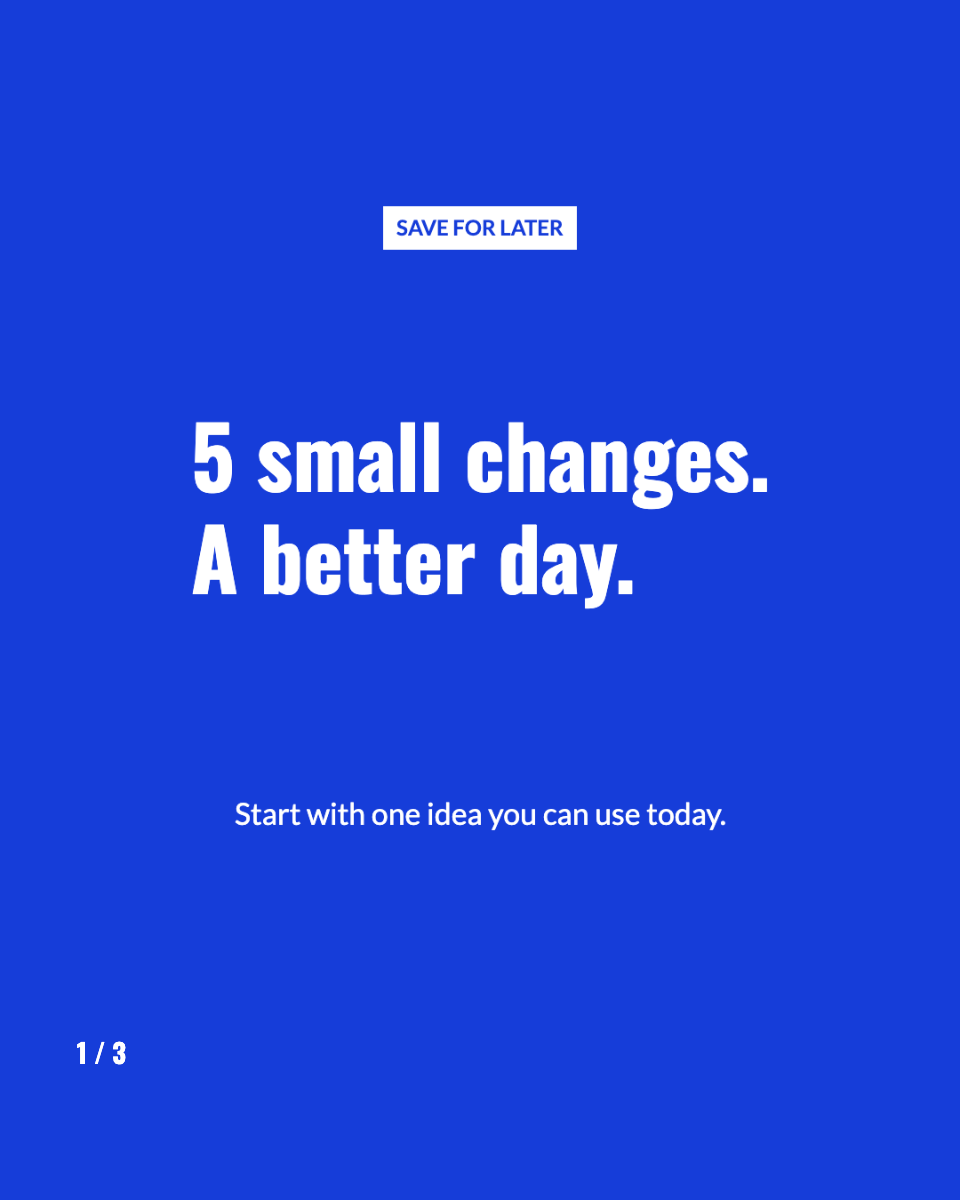
Check before moving on The opening, content and closing thumbnails all have the same shape.
Next step -
Write an opening with a clear promise
Select slide 1, then Text → Headline. Replace Your text with “A calmer morning.” Switch to Supporting text and enter “Two small habits to try tomorrow.” Use Additional text for a short label such as “START SMALL”.
In the editor 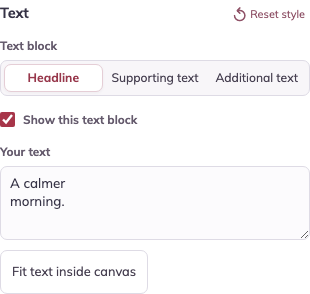
Your result 
Check before moving on The headline tells readers what they will get; the smaller text adds one useful detail.
Next step -
Write the first content slide
Select slide 2 in Your slides. In Text → Headline, enter “Prepare one thing tonight.” Then select Supporting text and enter “Set out your clothes before bed.” These are two separate text blocks on the same slide.
In the editor 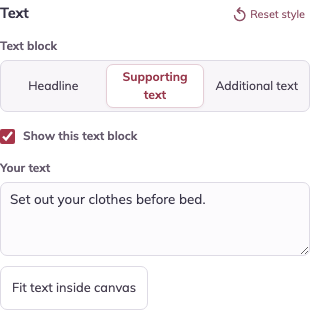
Your result 
Check before moving on Slide 2 should show both text blocks, as pictured. Finish this slide before making a copy in the next step.
Next step -
Duplicate a content slide for the next idea
Keep slide 2 selected and click Duplicate slide once. The editor selects the new copy as slide 3. On this copy, change Headline to “Start with a little light.” and Supporting text to “Open the curtains before checking your phone.”
In the editor 
Your result 
Check before moving on You now have four slides. Slide 2 keeps the clothes tip; slide 3 has the curtains tip. The closing should be slide 4. Use Move earlier or Move later if needed.
Next step -
Finish the story and match the style
Select the last slide. Use “Try one habit tomorrow.” and “Save this for a calmer start.” Select the slide whose styling you want to reuse, then click Apply fonts & colors to all slides. Keep Slide numbers checked.
In the editor 
Your result 
Check before moving on Fonts and colors match across the set. Each slide still keeps its own words and layout.
Next step -
Save, download and check the order
Click Save project to keep an editable copy in this browser. In the download area, choose Download all slides · ZIP. Extract the ZIP and open slide-01.png through slide-04.png. Add these PNGs in order when composing your post.
In the editor 
Your result 
Check before moving on Check all four images on your phone: readable text, no cut-off edges and the closing slide last.
Make it your own
Repeat the steps with your own message. Keep the exported images, and save an editable project in this browser if you want to return to it.
Open the carousel exampleWas this guide useful?